
Desktop cats
How to Put a Cute Cat on Your Mac Desktop
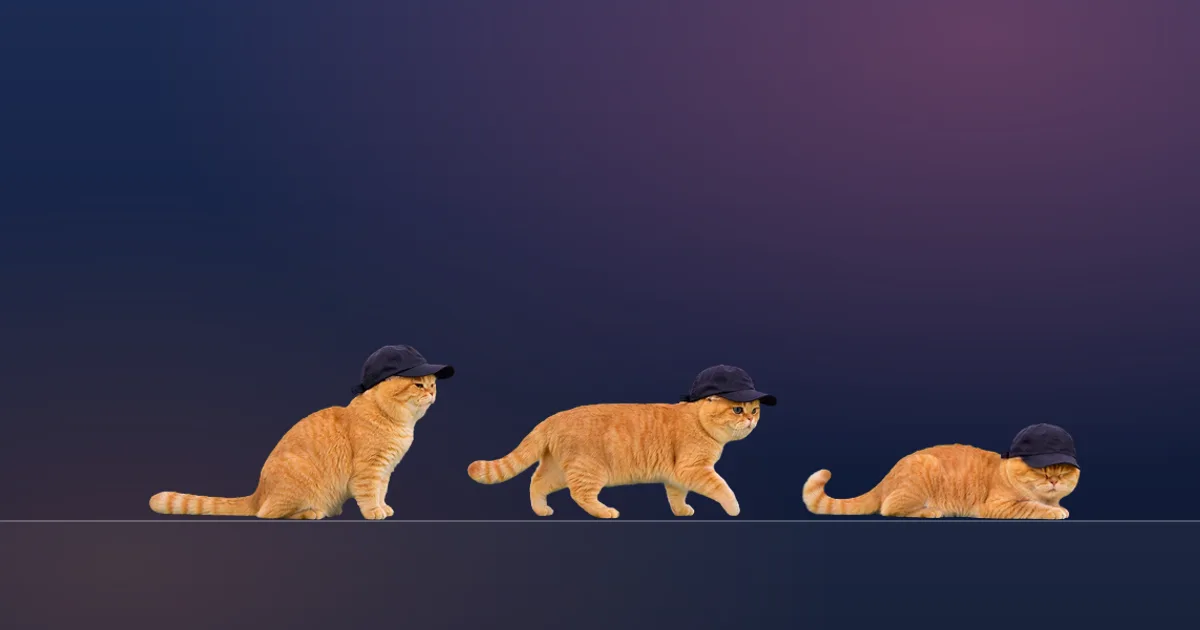
You can put a cat on your Mac desktop in three ways: a cat wallpaper, a small pixel-art cat app, or an animated desktop pet that walks across your screen. For a cat that moves, sleeps and reacts to clicks, use a desktop pet app; ScreenPaw, our app, makes that cat from photos of your own cat.
Key takeaways
- A wallpaper puts a cat behind your windows; a desktop pet app puts a moving cat in front of or on top of them.
- Animated desktop cats come in two styles: drawn characters (often pixel art) and cats based on real photos.
- ScreenPaw draws your pet from one to three photos of your own cat, then animates nine movements such as walking, sleeping and jumping.
- A desktop cat should let clicks pass through to the apps underneath, so it never gets in the way of work.
- ScreenPaw costs $9 once for one cat, needs macOS 15 or later and shows one cat on one display.
Three ways to get a cat on your Mac
There are three ways to see a cat on a Mac screen, and they differ in one thing: whether the cat moves. The table sums them up before we go through each.
| Approach | Where the cat is | Does it move? | Good for |
|---|---|---|---|
| Cat wallpaper | Behind all windows | No (or a slow dynamic loop) | A calm desk with zero setup |
| Drawn desktop cat app | On the desktop, often pixel art | Yes, a set of drawn animations | A game-like character with personality |
| Photo-based desktop pet | On the desktop and on your windows | Yes, animated from your photos | Seeing your own cat while you work |
A wallpaper is the simplest. You choose a photo in System Settings > Wallpaper and your cat sits behind everything. It never moves, never needs permissions and uses no extra processing power, but you only see it when your windows are out of the way.
Drawn cat apps are the classic “desktop pet”. A character with its own style, often pixel art, walks along the bottom of your screen, naps, and reacts when you click. Many offer several colours or breeds, and some live in a particular spot such as the Dock or the area around a MacBook’s camera.
Photo-based pets are newer. Instead of picking a ready-made cat, you give the app photos of your own animal and it generates a cat that looks like yours, then animates it. That takes real computing work, which is why these apps usually charge for each pet.
What a good desktop cat should do
A good desktop cat feels alive without getting in your way. The details that make the difference are easy to check before you buy:
- Clicks pass through. Only the cat should be clickable. A cat that sits on top of a button and swallows your click is charming exactly once.
- It respects full-screen apps. When you watch a film or present slides, the cat should step aside.
- It rests when you do. When the display sleeps, the animation should stop drawing.
- It does not need to see your screen. To walk on your windows, an app only needs their positions. Screen Recording permission lets an app see and record everything on screen, so a pet that asks for it should explain why.
- It is easy to quit. Look for a menu bar icon with a Quit item.
You can check the energy side yourself. Apple’s Activity Monitor has an Energy tab with an Energy Impact column, a relative measure where lower is better. Open it with the cat running and compare.
How ScreenPaw turns your own cat into a desktop pet
ScreenPaw starts from photos of your cat, not from a ready-made character. ScreenPaw is our product, so here is exactly what it does, including the parts some people will not like.
You add one to three photos: the whole cat, in good light, ideally on its own. After you pay $9 once, AI image and video models draw your cat from the side and animate it. Your Mac then cuts those short clips into transparent frames. The whole process takes about two to three minutes, and the finished cat walks onto your desktop.
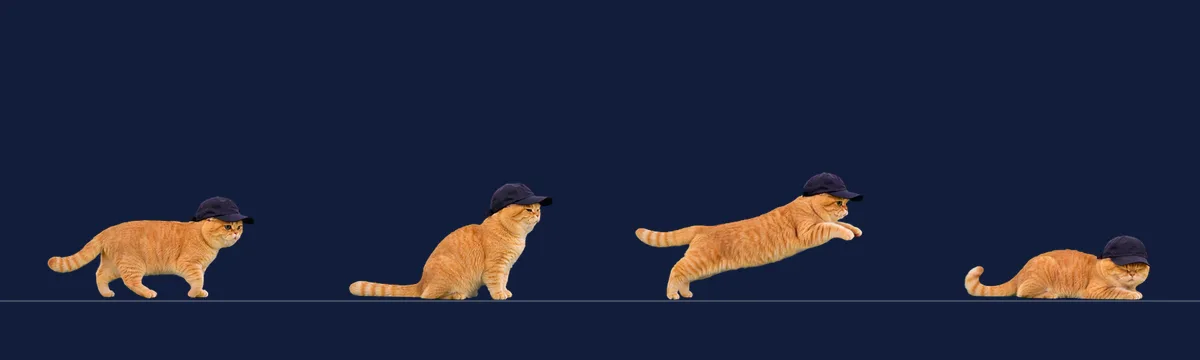
Each cat has nine movements: walking, running, sitting, sleeping, idling, jumping, turning, being petted and being held. The frames above come from one of those cats, made from photos of a real ginger cat that happens to wear a cap.
What ScreenPaw does not do matters as much. You cannot see the cat before paying, because generating it is the costly step; if generation fails on our side, your credit comes back. Likeness is the goal, but AI models can miss small details such as an exact stripe pattern, so a sharp, well-lit photo makes the biggest difference.
What your cat can do on the desktop
Once it arrives, a ScreenPaw cat behaves like a small animal that has found a new home. It walks along the top edges of your windows and above the Dock, and hops to another window when it runs out of ledge. Drag a window and the cat rides along; fling the window and it flies; close the window and it drops down.
You can press and hold to pet it, pick it up and drop it anywhere, or start the laser game: for thirty seconds a red dot moves with your pointer and the cat turns, crouches, sprints and pounces. In winter mode, snow settles on your windows and the Dock, and you can throw snowballs for the cat to chase. Four winter wallpapers, break reminders and a one-hour keep-awake switch live in the same menu bar panel.
Clicks anywhere other than the cat go straight to the app underneath. The cat steps aside when an app goes full screen, stops drawing while your display sleeps and lowers its frame rate on battery.
Choosing photos that give the best cat
Good photos are the single biggest factor in how much a generated cat looks like yours. A few habits help:
- Show the whole cat. Head, body, legs and tail all in frame. A face-only close-up leaves the model guessing the rest.
- Use daylight. Soft window light shows true fur colour; flash and warm lamps shift it.
- Keep the cat alone. Another pet or a busy pattern behind the cat can bleed into the result.
- Add a second angle. A side view plus a front view gives the model more to work with than two near-identical shots.
If the result still does not look like your cat, write to us with your order details; likeness is what we care about most.
Which option is right for you
Pick the approach by what you want to see during the day. If you want a cat in view without anything moving, a wallpaper is enough. If you like a playful character and want to try several looks, a drawn desktop cat app fits. If what you want is your own cat, walking on the windows you work in, a photo-based pet is the only way to get it. That is what ScreenPaw is for. For the full installation steps, see how to get a desktop pet on your Mac.
Limits worth knowing
- ScreenPaw makes cats and dogs only. It cannot turn a photo of a rabbit, a bird or a cartoon character into a pet.
- A photo-based cat is generated by AI models, so small details such as exact markings may differ from your cat. Clear, well-lit photos help most.
- You cannot preview a ScreenPaw cat before paying, and one payment makes one cat.
- A wallpaper is the lightest option for an older Mac; any animated pet uses some processing power while it moves.
Frequently asked questions
How do I put a cat on my Mac screen?
Install a desktop pet app that offers a cat, open it, and the cat appears on your desktop above your wallpaper. For a still cat, set a cat photo as your wallpaper instead in System Settings > Wallpaper.
Can I get a desktop cat that looks like my own cat?
Yes, with an app that builds the pet from your photos. ScreenPaw asks for one to three photos of your cat, generates the cat and its movements in about two to three minutes, and puts it on your desktop.
Will a cat on my desktop block my clicks?
It should not. In a well-made desktop pet app only the cat itself is clickable, and every click elsewhere goes to the window underneath. That is how ScreenPaw works.
Is there a pixel cat for Mac?
Yes, several desktop pet apps use pixel-art cats, often with a choice of colours or breeds. They suit people who like a game-style look; a photo-based cat suits people who want their own pet on screen.
Sources
- Change Desktop & Dock settings on Mac, Apple Support (macOS User Guide). Accessed November 19, 2026.
- Control access to screen and system audio recording on Mac, Apple Support (macOS User Guide). Accessed November 19, 2026.
- Safely open apps on your Mac, Apple Support. Accessed November 19, 2026.
- View energy consumption in Activity Monitor on Mac, Apple Support (Activity Monitor User Guide). Accessed November 19, 2026.