
Dock pets
Mac Dock Pets: What Lives on Your Dock and How It Works
A Mac Dock pet is a small animated animal that lives on or above your Dock. Some apps turn their own Dock icon into the pet; others let a pet walk along the top edge of the Dock while you work. Your Dock's position, size and auto-hide setting decide how much room it has. ScreenPaw, our app, uses the second style.
Key takeaways
- Dock pets come in two kinds: an animated app icon inside the Dock, or a pet that walks on the line above the Dock.
- The Dock can sit at the bottom, left or right of the screen and can hide itself, which changes where a Dock pet can walk.
- Magnification enlarges Dock icons under the pointer; a pet that walks above the Dock is not affected by it.
- A ScreenPaw pet walks along the top of the Dock, rides on your windows, and gets snow on the Dock in winter mode.
- Dock pets are ordinary apps: you quit them from their own menu, or with Force Quit from the Dock if one stops responding.
Two kinds of Dock pet
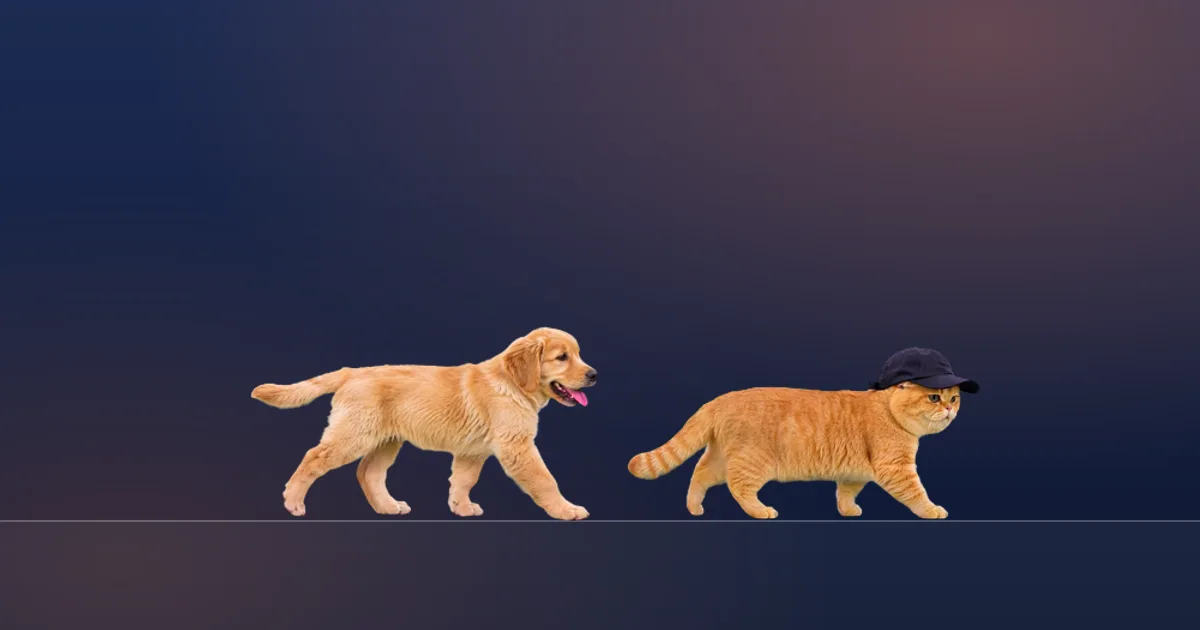
Dock pets split into two kinds, and the difference decides almost everything else. The first kind lives inside the Dock: the app’s own icon is the pet, animated in place among your other icons. The second kind lives on the Dock: a separate, frameless window draws an animal that walks along the line just above the Dock, the way a cat walks along a shelf.
| Pet inside the Dock (animated icon) | Pet on top of the Dock (walking) | |
|---|---|---|
| Where you see it | In the row of Dock icons | On the edge above the Dock, and often on windows too |
| Size | Limited to the icon size you chose | Its own size, independent of the icon size |
| When the Dock hides | Hides with it | Stays on screen |
| Room to move | Its own icon square | The whole width of the screen |
| Typical interactions | Clicking or right-clicking the icon | Petting, picking up, dragging, playing |
Neither is better in general. An icon pet is tidy and always in the same place. A walking pet has more space and more ways to play, and covers a little more of the screen while it moves.
How your Dock settings change a Dock pet
Your Dock settings shape a Dock pet more than any setting inside the pet app. Apple’s Desktop & Dock settings control four things that matter here.
Position. The Dock sits at the bottom of the screen by default, and you can move it to the left or right edge. An icon pet simply goes with it. A walking pet needs a horizontal edge to stand on, so a side Dock gives it nothing to walk along; it will usually fall back to the bottom of the screen.
Automatically hide and show the Dock. With this on, the Dock slides away until you move the pointer to that edge. An icon pet vanishes with it. A walking pet stays visible and walks along the bottom of the screen, which many people actually prefer, because the pet is in view while the Dock is out of the way.
Size. A bigger Dock gives an icon pet more pixels. For a walking pet, Dock size only changes how high the “floor” sits.
Magnification. Icons grow when the pointer passes over them. That makes an animated icon pet briefly bigger. A walking pet sits above the Dock, so magnification does not move it.
How a ScreenPaw pet uses the Dock
A ScreenPaw pet walks on top of the Dock, not inside it. ScreenPaw is our product, so here is the behaviour exactly as it works today.
With the Dock at the bottom, the top edge of the Dock is your pet’s floor, and the floor runs across the full width of the screen. From there the pet hops up onto the tops of your windows, walks along them, and drops back down to the Dock when it runs out of ledge. Drag a window while the pet is on it and it rides along; close that window and the pet falls back to the Dock line.
With the Dock on the side or set to hide, the floor is the bottom edge of the screen instead. Nothing else changes: the pet still climbs onto windows and comes back down.
In winter mode, snow settles on the Dock as well as on your windows. You can sweep the drift with your pointer, scoop a snowball out of it and throw it for your pet to chase. Snow on the Dock needs no permission. Snow on desktop icons is a separate switch that asks for Automation access to Finder, because ScreenPaw needs Finder to tell it where the icons are; it reads positions only, never file names.
The pet itself is a cat or a dog made from one to three photos of your own animal, for $9 once. ScreenPaw needs macOS 15 or later and runs on Apple silicon and Intel Macs. Details are on the ScreenPaw home page.
Keeping a Dock pet out of your way
A Dock pet earns its place by staying out of the way when you need the Dock. Three habits make the difference.
First, clicks should pass through. With a walking pet, only the animal itself should catch a click; a click on the Dock icon behind it should still open the app. ScreenPaw works this way.
Second, full-screen apps should win. When a video or a presentation fills the screen, the Dock and the pet should both step aside. A ScreenPaw pet does, and returns when you leave full screen.
Third, watch the cost on a laptop. Apple’s Activity Monitor shows the CPU and energy use of every app, including a pet. A ScreenPaw pet lowers its frame rate on battery and stops drawing while the display sleeps. Snow is the expensive part, because macOS has to redraw the screen while flakes move, so switch snow off when you are on battery and want every minute.
Quitting or removing a Dock pet
Every Dock pet is a normal app, so it stops and comes off like one. Quit it from its own menu first. Many pet apps hide their Dock icon and keep a menu bar icon instead. ScreenPaw shows its icon in the Dock while it runs, so you can quit it from the Dock, with Command-Q, or from the panel under its paw icon in the menu bar.
If an app stops responding, Apple’s Force Quit window (Option-Command-Esc) closes it, and if the app shows a Dock icon, you can also Control-click that icon and choose Force Quit. To uninstall, drag the app from Applications to the Trash. Our guide to getting a desktop pet covers the full removal steps, including the saved data folder.
Which Dock pet fits you
Choose by how you use the Dock. If you keep it visible at the bottom and like a fixed, tidy look, an animated icon pet suits you. If you hide the Dock, move it to the side or want a pet with room to roam and play, a walking pet works better. If the animal you want on your Dock is your own cat or dog, a photo-based pet such as ScreenPaw is the way to get it. For a pet that lives up by the camera instead, read about MacBook notch pets.
Limits worth knowing
- A ScreenPaw pet does not sit among your Dock icons or replace an app icon; it walks above the Dock.
- When the Dock is on the left or right, or hidden, a ScreenPaw pet walks along the bottom edge of the screen instead of on a visible Dock.
- ScreenPaw shows one pet at a time, on one display.
- Apple documents how the Dock behaves, not how third-party pets use it, so behaviour around the Dock is each app's own design.
Frequently asked questions
Can I have a cat in my Mac Dock?
Yes. Some apps animate their own Dock icon as a cat, so the cat sits among your other icons. Others, including ScreenPaw, put a cat on the line above the Dock, where it can walk the whole width of the screen and climb onto your windows.
Does a Dock pet work if I hide the Dock?
It depends on the kind. An icon-based pet disappears with the Dock. A pet that walks above the Dock, like a ScreenPaw pet, keeps walking along the bottom of the screen and is still there when the Dock slides back up.
Does a Dock pet work with the Dock on the side of the screen?
Icon-based pets move with the Dock wherever it is. A ScreenPaw pet walks on horizontal edges, so with a side Dock it uses the bottom of the screen and the tops of your windows.
How do I stop a Dock pet that is not responding?
Use the app's own Quit command first. If it does not respond, press Option-Command-Esc to open Force Quit, or Control-click its Dock icon and choose Force Quit if the app shows one.
Sources
- Use the Dock on Mac, Apple Support (macOS User Guide). Accessed November 19, 2026.
- Change Desktop & Dock settings on Mac, Apple Support (macOS User Guide). Accessed November 19, 2026.
- How to force an app to quit on Mac, Apple Support. Accessed November 19, 2026.
- View CPU activity in Activity Monitor on Mac, Apple Support (Activity Monitor User Guide). Accessed November 19, 2026.
- Allow apps to automate and control other apps, Apple Support (macOS User Guide). Accessed November 19, 2026.